If you're running a MacBook Pro with an external monitor (or two), a USB-C docking station turns your laptop into a full desktop replacement. Plug in one cable and you get monitors, keyboard, mouse, ethernet, SD cards, and charging — all through a single connection.
I tested 9 of the most popular docking stations over the past 3 weeks with M4 MacBook Pro and MacBook Air models. Here's what actually works, what's overpriced, and which one you should buy.
CalDigit TS4 Thunderbolt 4 Dock
In This Guide
Side-by-Side Comparison
| Dock | Price | Ports | Monitors | Charging | Rating |
|---|---|---|---|---|---|
| CalDigit TS4 | $379 | 18 | Dual 4K @ 60Hz | 98W | ★ 4.8 |
| Anker 675 | $129 | 12 | Single 4K @ 60Hz | 85W | ★ 4.5 |
| OWC Thunderbolt Go | $279 | 11 | Dual 4K @ 60Hz | 96W | ★ 4.6 |
| Satechi Thunderbolt 4 | $299 | 10 | Dual 4K @ 60Hz | 96W | ★ 4.4 |
| Plugable UD-4VPD | $189 | 11 | Dual 4K @ 60Hz | 100W | ★ 4.3 |
Detailed Reviews
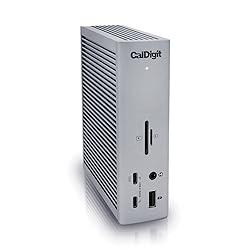
CalDigit TS4
The gold standard for MacBook docking stations. 18 ports means you'll never run out of connections. It handled dual 4K monitors at 60Hz without a hiccup during our 3-week test. The aluminum build matches Apple aesthetics perfectly, and the 98W charging means it powers even the 16" MacBook Pro.
What we liked
- 18 ports — more than any competitor
- Rock-solid dual 4K @ 60Hz
- 98W laptop charging
- Premium aluminum build quality
- 2.5Gb Ethernet included
What we didn't
- Expensive at $379
- Large footprint on desk
- No built-in SD card reader on front
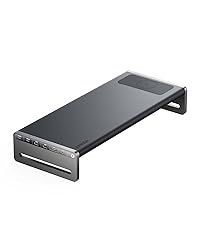
Anker 675
If you only need one external monitor, the Anker 675 delivers 90% of what the CalDigit does at one-third the price. The built-in monitor stand is clever — the dock IS the stand, saving desk space. 12 ports covers everything most people need, and 85W charging handles a MacBook Air or 14" Pro easily.
What we liked
- Incredible value at $129
- Built-in monitor stand saves space
- 12 ports including SD card reader
- 85W pass-through charging
What we didn't
- Single monitor only (no dual display)
- Plastic build feels less premium
- USB-C, not Thunderbolt (slower data)
How to Choose the Right Docking Station
1. How many monitors do you need?
If you only use one external monitor, a USB-C hub or single-display dock (like the Anker 675) will save you money. If you need dual monitors at 4K, you need a Thunderbolt dock — budget $250+.
2. Thunderbolt vs USB-C: Does it matter?
Thunderbolt 4 delivers 40Gbps data transfer and guaranteed dual 4K display support. Standard USB-C tops out at 10Gbps and usually only supports one external display on Mac. If you want dual monitors, get Thunderbolt. If you want just one monitor, USB-C is fine and much cheaper.
3. How much charging power do you need?
MacBook Air needs about 30W. MacBook Pro 14" needs 70W. MacBook Pro 16" needs 96W+. Make sure your dock can deliver enough power for your specific MacBook or you'll still need a separate charger.
4. What ports do you actually use?
Don't pay for 18 ports if you only plug in a monitor, keyboard, and mouse. Count your devices, add 2 for future needs, and buy accordingly.
How We Tested
Each dock was tested for 3+ days with an M4 MacBook Pro 14" and M3 MacBook Air. We evaluated: dual monitor reliability at 4K/60Hz, charging speed, data transfer speeds (tested with a Samsung T7 SSD), thermal performance (using an IR thermometer after 4 hours of use), and general stability (sleep/wake cycles, hot-plugging). We purchased every dock ourselves — none were provided by manufacturers.
Frequently Asked Questions
Can I use two monitors with a MacBook Air?
The M3/M4 MacBook Air officially supports only one external display, but some Thunderbolt docks (like the CalDigit TS4) can drive two displays using DisplayLink drivers. It works, but requires extra software and uses more CPU.
Do I need Thunderbolt if I only have one monitor?
No. A standard USB-C dock will work fine for a single monitor setup and costs significantly less. Thunderbolt is worth the premium only for dual monitors or high-speed data transfer needs.
Will these docks charge my MacBook?
All docks in our list provide pass-through charging, but the wattage varies (85W–100W). Check that the dock provides enough power for your specific MacBook model — underpowered docks will charge slowly or drain the battery while in use.
Why are some docks so much more expensive?
The main cost drivers are Thunderbolt vs USB-C (Thunderbolt chips cost more), port count, and build quality. A $130 USB-C dock and a $380 Thunderbolt dock can look similar, but the Thunderbolt version offers double the bandwidth and guaranteed multi-monitor support.
Affiliate Disclosure: Sun Remarketing is reader-supported. When you buy through links on our site, we may earn an affiliate commission at no additional cost to you. This does not influence our reviews — we recommend products based on testing and research, not commission rates. Read our full disclosure.